Memsit – Shadowing Studio: User Guide
This guide explains step by step how to use Memsit – Shadowing Studio. Click on a topic to expand the corresponding instructions.
Important: Select your languages and audio settings before clicking “Generate” to create the audio.
1. Installation and First Launch
Download Memsit – Shadowing Studio using the “Try Free for 30 Days” button on the Memsit website.
- Open the downloaded installation file.
- Follow the instructions in the installer.
- Select the language packs you want to install, if this option is offered during installation.
- Launch Memsit – Shadowing Studio.
- The 30-day trial includes all features, including MP3 export.
After the trial period, you can purchase a lifetime licence for a one-time payment of €12. There is no subscription.
2. Opening Files and Editing Text
Use the “Datei öffnen” (Open File) button to load an existing text or document into Memsit.
You can also type or paste text directly into the large white editor area.
Supported text and document formats include DOCX, ODT, PDF, TXT and MD. Text can also be extracted from JPG, JPEG and PNG images using optical character recognition (OCR).
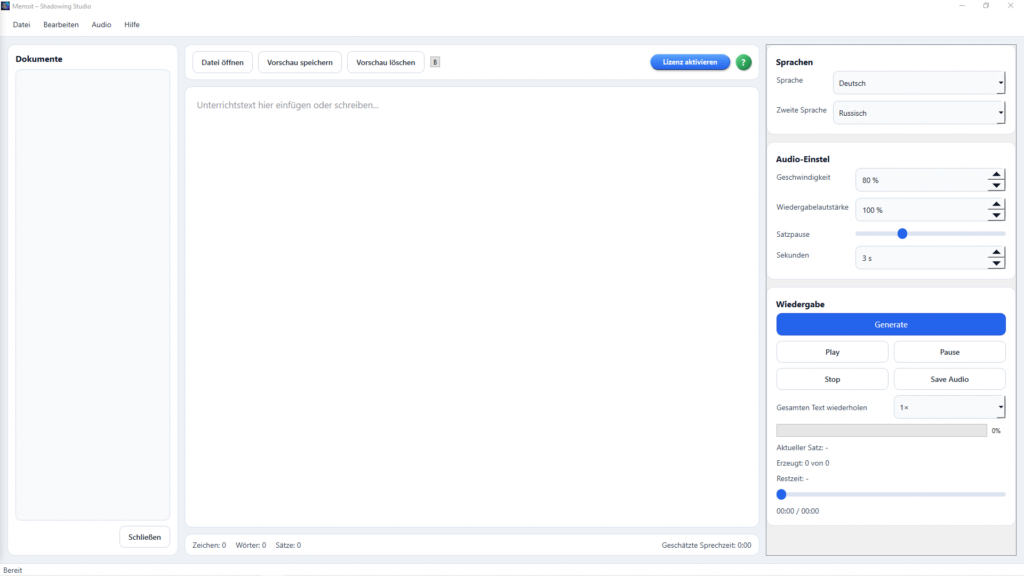
The “Dokumente” (Documents) panel on the left displays your documents. The large central area is where you edit your text.
Tip: For your first practice session, start with a short text containing three to five sentences.
3. Saving and Clearing the Preview
The top toolbar contains the buttons “Vorschau speichern” (Save Preview) and “Vorschau löschen” (Clear Preview).
The exact function of “Save Preview” will be explained in a future update to this guide.
“Clear Preview” removes an existing preview. This is not the same as deleting your original document file.
4. Selecting the Main and Second Language
The “Sprachen” (Languages) section is located in the upper-right corner.
- Sprache (Language): Select the main language of your text, for example German.
- Zweite Sprache (Second Language): For bilingual texts, select another language, such as Russian or French.
- For monolingual texts, select “Keine” (None) as the second language.
The currently supported languages are German, French and Russian. The languages available for selection depend on the installed and licensed language packs.
5. Adjusting Speaking Speed and Volume
In the “Audio-Einstellungen” (Audio Settings) section on the right, you can adjust the speaking speed and playback volume.
- Geschwindigkeit (Speed): Set the speaking speed between 50% and 100%.
- Wiedergabelautstärke (Playback Volume): Adjust the volume to suit your needs.
A slower speaking speed can be helpful for shadowing practice. For example, start at 80% and gradually increase the speed as you become more confident.
Important: Make your preferred adjustments before clicking “Generate”.
6. Setting Pauses Between Sentences
The “Satzpause” (Sentence Pause) setting determines how much time is left between spoken sentences.
You can adjust the pause using the slider or the seconds field.
For example, a three-second sentence pause gives you time to repeat each sentence aloud after hearing it.
Choose longer pauses if you speak slowly or want to practise difficult sentences.
7. Adding Extra Pauses Within a Sentence Using //
Memsit normally recognises sentence boundaries from punctuation and inserts the configured pauses at those points.
For particularly long sentences, you can insert an additional pause manually using two forward slashes:
Example:
I practise German every day // because I want to communicate more confidently.
An additional pause is inserted at the marked position without having to split the sentence with a full stop.
Keyboard: On a German keyboard, press Shift + 7 to type a forward slash (/). Repeat the shortcut to type //.
8. Repeating Individual Sentences Up to Five Times
You can listen to and repeat individual sentences several times for focused practice.
- Right-click the desired sentence in the editor.
- Select the sentence repetition function from the context menu.
- Choose the desired number of repetitions.
- Each individual sentence can be repeated up to five times.
This feature is especially useful for difficult sentence structures, pronunciation exercises and new expressions.
9. Repeating the Entire Text and Using Endless Loop Playback
In the “Wiedergabe” (Playback) section on the right, you will find the “Gesamten Text wiederholen” (Repeat Entire Text) setting.
Here you can choose how many times the complete text should be played.
- Single playback: 1×.
- Multiple playback: up to 10×.
- Endless loop: The text continues to repeat in the desktop application until you stop playback.
Note: Endless loop is a playback feature of the desktop application. An infinitely long MP3 file cannot be saved.
10. Generating Audio – Generate
The blue “Generate” button converts your text into spoken audio.
Recommended procedure:
- Open a text or paste it into the editor.
- Select the main language and, if needed, a second language.
- Adjust the speaking speed and volume.
- Set the pauses between sentences.
- If needed, add extra pauses using // and configure sentence repetitions.
- Choose how many times the entire text should be repeated.
- Click “Generate”.
- Wait until audio generation is complete.
The progress is displayed in the playback section.
11. Play, Pause and Stop
After generating the audio, use the following buttons to control playback:
- Play: Start or resume playback.
- Pause: Temporarily pause playback.
- Stop: Stop playback.
The lower section displays information such as the current sentence, generation progress, remaining time and playback time.
12. Saving an MP3 File – Save Audio
Use “Save Audio” to save the generated audio file so that you can listen to it later without opening Memsit.
Follow these steps:
- Open the desired text.
- Set the language, speaking speed, pauses and repetitions.
- Click “Generate”.
- Wait until audio generation is complete.
- Click “Save Audio”.
- Choose a destination and save the audio file.
You can play the saved MP3 file on your smartphone, computer or another compatible audio device.
Important: MP3 export is also available during the full 30-day trial period.
13. Activating Your Licence
The “Lizenz aktivieren” (Activate Licence) button is located in the upper-right corner.
After the 30-day trial, you can purchase and activate a lifetime licence for a one-time payment of €12.
There are no monthly subscription fees. Updates are included in the licence price.
14. Help and the Question Mark Icon
A green question mark icon is located in the upper-right corner. You can also find “Hilfe” (Help) in the menu bar.
These options provide access to help information within the application.
This online user guide complements the information available directly in Memsit.
15. Tips for Effective Shadowing Practice
Shadowing is a language-learning technique in which you listen to spoken language and repeat it as closely as possible to the original.
- Start with short texts.
- Choose a slower speaking speed at first.
- Increase the sentence pauses if you need more time to repeat what you hear.
- Practise difficult sentences several times.
- Gradually increase the speaking speed.
- Use the MP3 feature to practise while travelling or away from your computer.
- Practise regularly with texts that match your interests and learning goals.
Memsit – Shadowing Studio: Your Texts. Your Pace. Your Learning Goals.